
Visual Studio Code
While you’re free to use any code editor you’re comfortable with, I highly recommend using Visual Studio Code. It’s lightweight, beginner-friendly, and comes with powerful extensions that can streamline your workflow for CSCE240.
Extensions
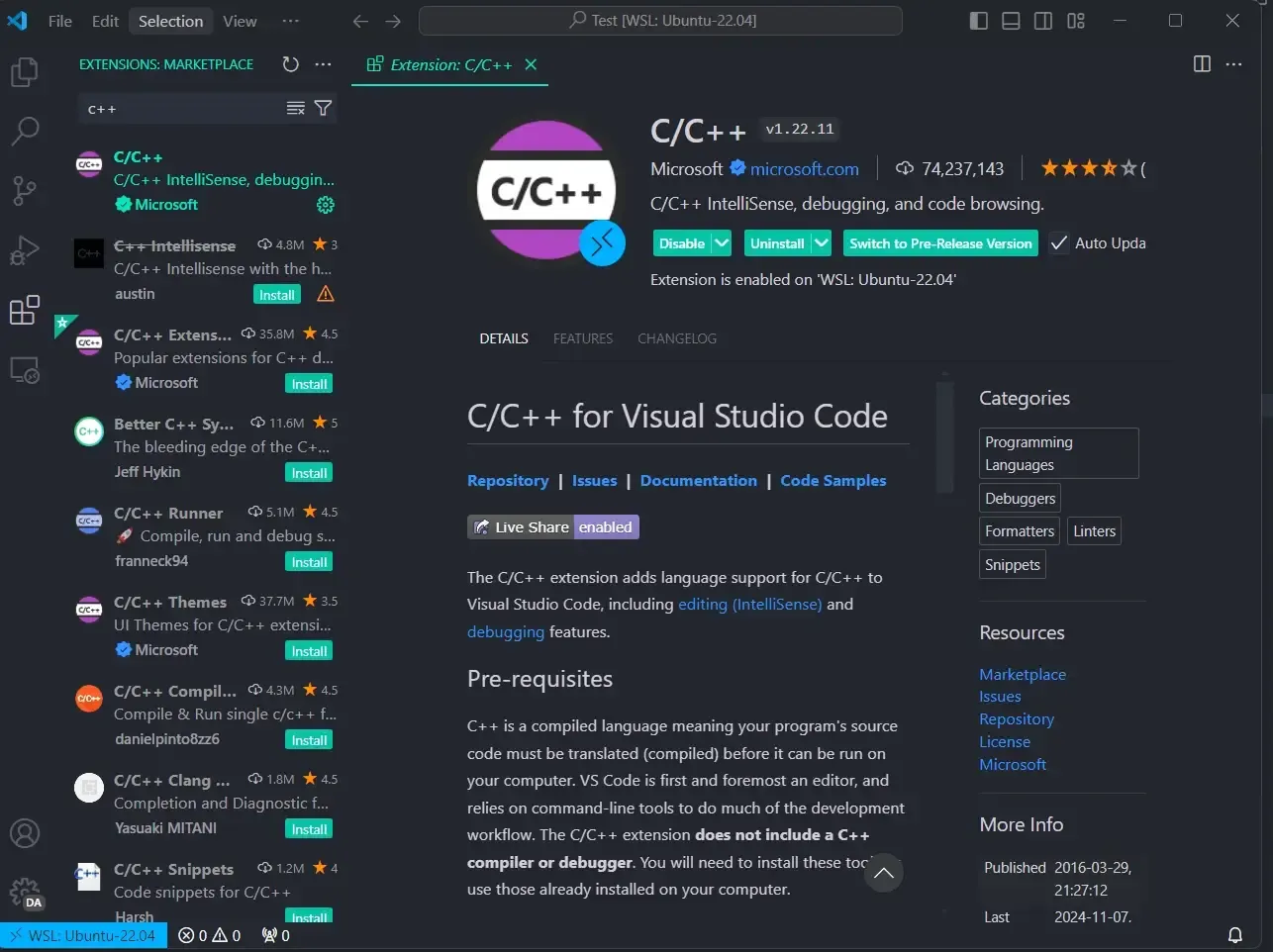
Section titled “Extensions”I HIGHLY recommend you get the C/C++ extension by Microsoft. It’s going to add language support for C++ such as Intellisense which is going to help tremendously when developing your programs.
Click on your Extensions tab and enter c++ in the search bar. The extension should
be the first to appear in the search results with over 70 million downloads.
Auto-Formatter
Section titled “Auto-Formatter”Remember in the Style Requirements page when I mentioned that some code editors can be configured to automatically format your code? Well VSCode just so happens to be one of those 😊 editors! You can setup auto-formatting the quick method by copying some code, or if you want to practice customizing your editor you can follow the slower method:
Quick Method
Section titled “Quick Method”-
Create a folder called
.vscodein yourrootfolder -
Create a file called
settings.jsonand copy the following code:settings.json {"[cpp]": {"editor.formatOnSave": true, // formats on save"editor.defaultFormatter": "ms-vscode.cpptools" // added by C++ extension},"C_Cpp.clang_format_fallbackStyle": "Google", // if no clang format file use Google"C_Cpp.formatting": "clangFormat" // looks for clang format file}
Slower Method
Section titled “Slower Method”-
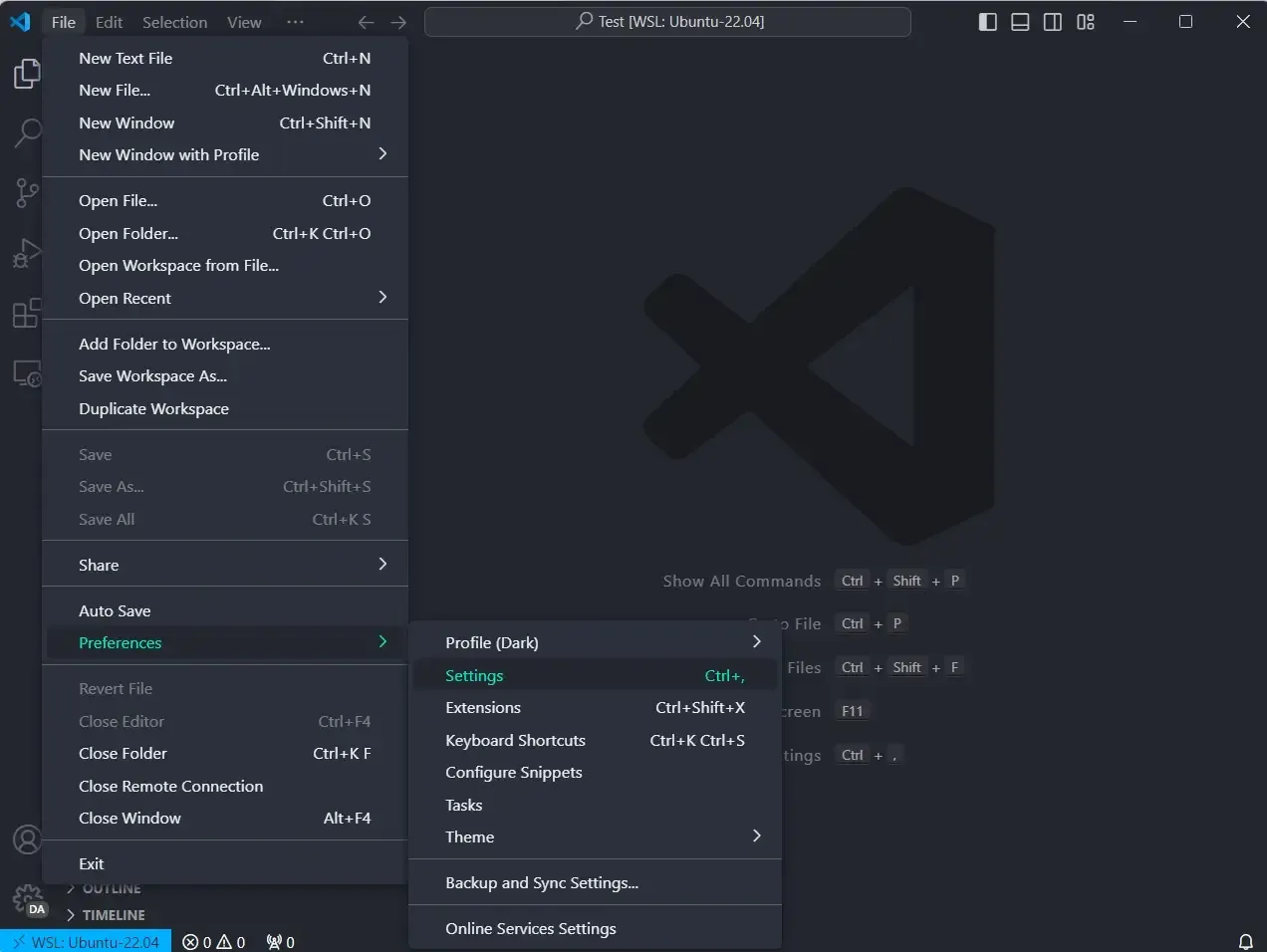
In VSCode, Click on File -> Hover Over Preferences, and Click Settings
-
Search for
@lang:cpp format-> Click on the Workspace tab -> Check Editor: Format On Save.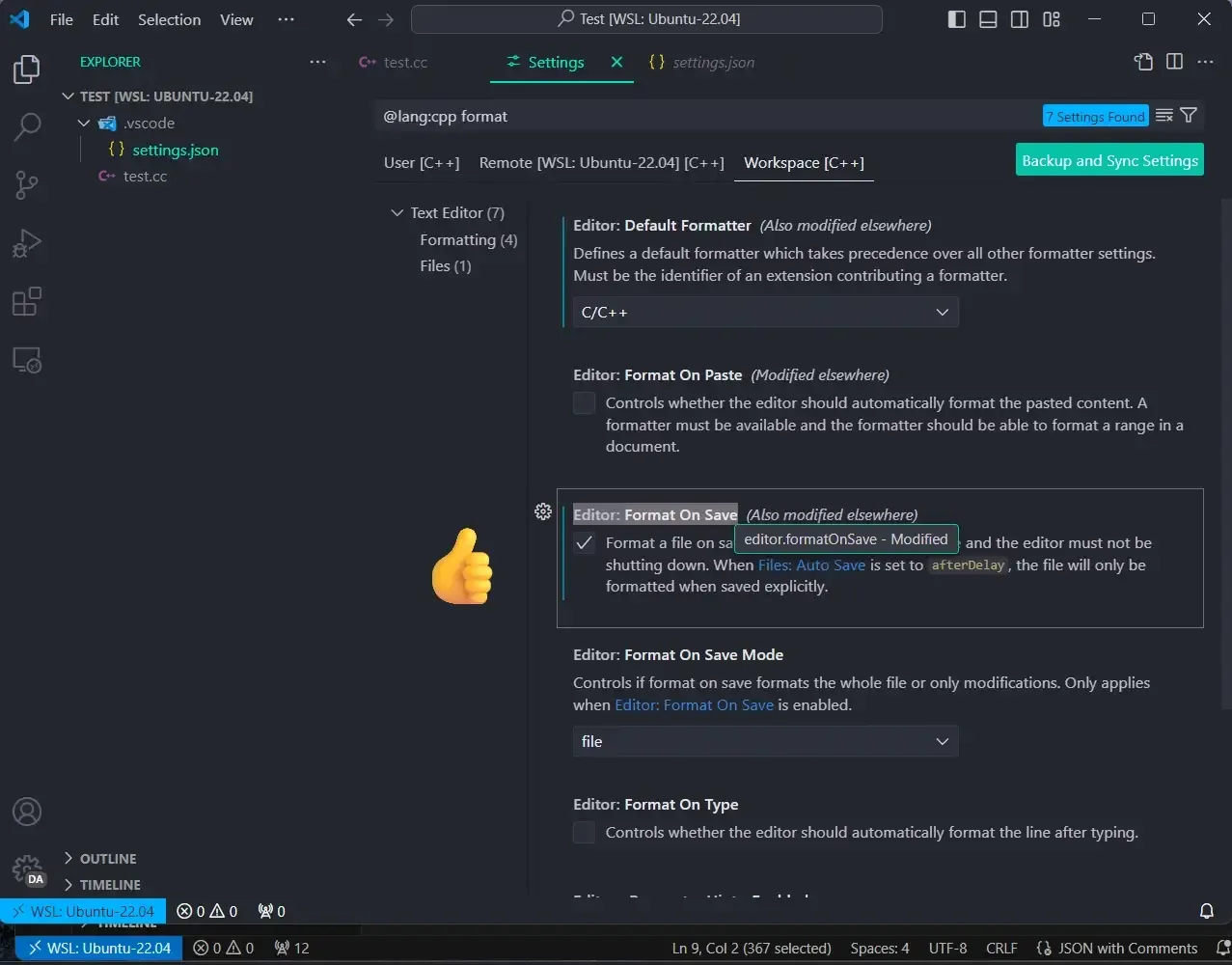
-
Search for
c_cpp-> Click on Formatting under C/C++ -> Edit the C_Cpp: Clang_format_fallback Style to beGoogle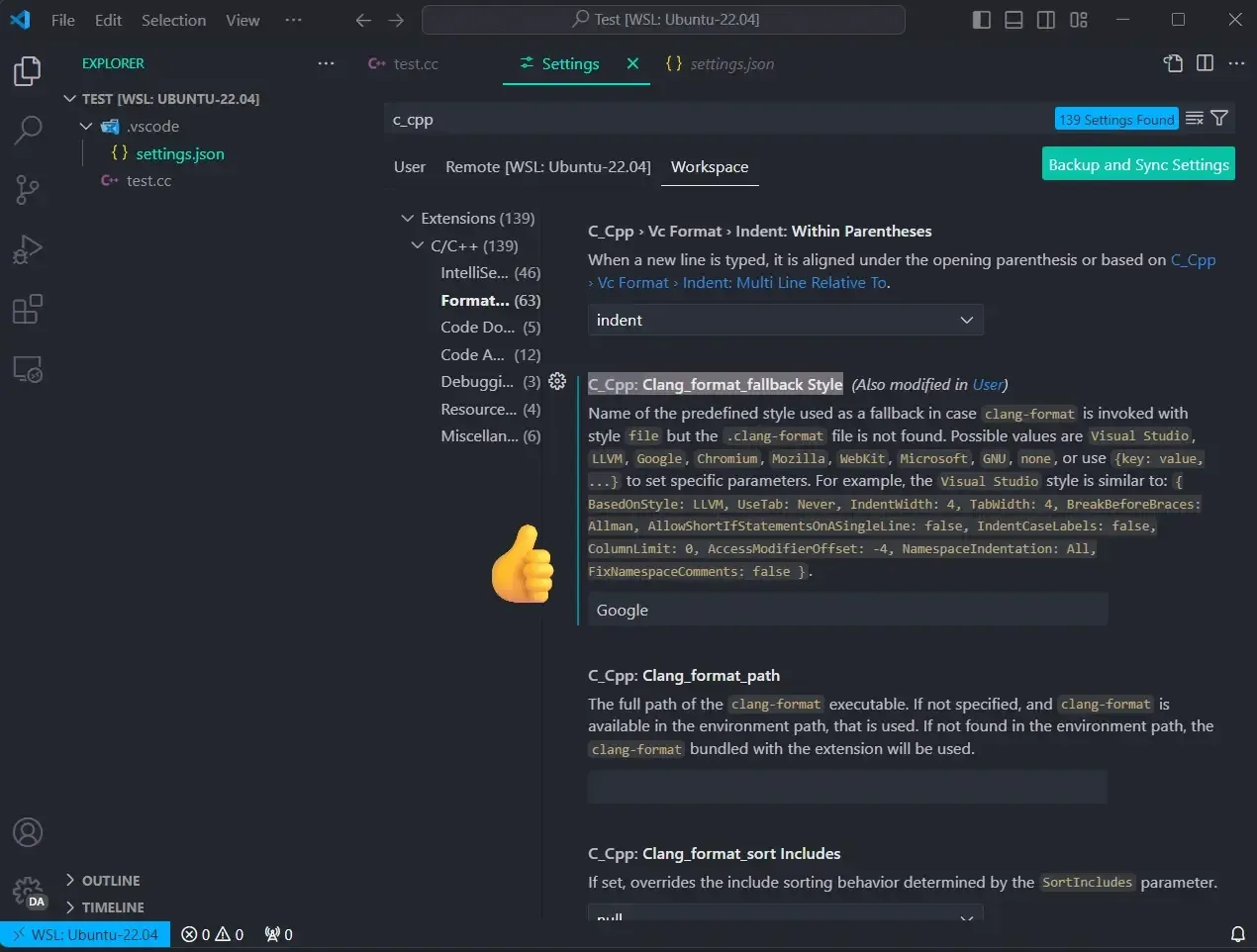
-
Finally scroll down to C_Cpp: Formatting and select
clangFormat. Above that section is C_Cpp: Clang_format_style and its value should befile.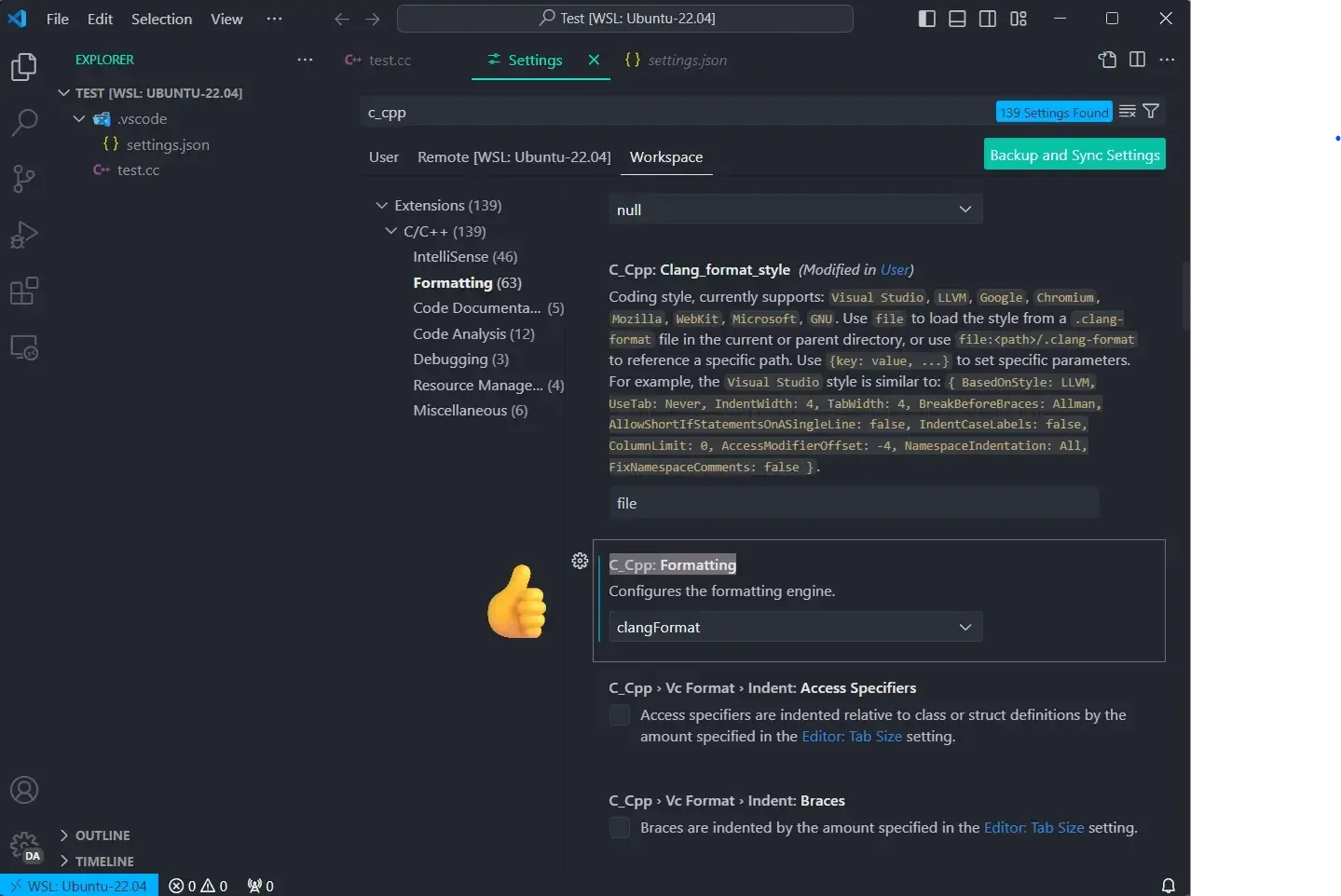
-
You should now have a folder called
.vscodein your root folder along with a file inside it calledsettings.jsonCheck that the code in
settings.jsonis similar to the following:settings.json {"[cpp]": {"editor.formatOnSave": true, // formats on save"editor.defaultFormatter": "ms-vscode.cpptools" // added by C++ extension},"C_Cpp.clang_format_fallbackStyle": "Google", // if no clang format file use Google"C_Cpp.formatting": "clangFormat" // looks for clang format file}
Testing
Section titled “Testing”Create a file called test.cc in the root folder. The following should be your current file structure:
DirectoryCSCE240
Directory.vscode
- settings.json
- test.cc
Copy the code in the Before tab and use ctrl/cmd + s to save. Your code should of been formatted to look like
the After tab’s code! Auto-formatting has now been 🚀 implemented! Though not perfect, it will handle most of those
pesky style requirements.
// Before Saving#include <iostream>
using std::cout;using std::endl;
int main() {
  cout << "a very very long sentence that needs to be formatted in order to pass the Google Style Requirements" << endl;
return 0;}// After Saving#include <iostream>
using std::cout;using std::endl;
int main() { cout << "a very very long sentence that needs to be formatted in order to " "pass the Google Style Requirements" << endl;
return 0;}